
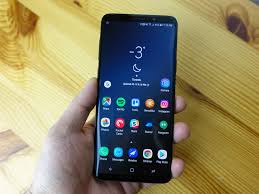
Choosing a smartphone for your teenager is about more than just the brand name on the back or the number of cameras on the back. As digital natives, our children interact with technology in ways that shape their social lives, their learning habits, and their understanding of privacy. When you hand them a device, you are handing them a window to the world—and often, you want to ensure that window has some curtains you can close.
If you’ve been shopping for a phone recently, you might have noticed that not all “Android” phones look or act the same. While they might all run Google’s operating system under the hood, manufacturers like Samsung, Xiaomi, and OnePlus apply their own “skins” or user interfaces on top. These skins—One UI, MIUI, and OxygenOS—drastically change the user experience, parental controls, and privacy settings.
Understanding these differences is crucial for parents who want to foster a safe, distraction-free environment for their children. Just as we prioritise a structured environment in our boarding schools to help students focus, the digital environment we provide them should also encourage discipline and safety. This guide explores the landscape of Android custom skins, focusing on how they differ, how they handle privacy, and which ones might be best suited for a student’s lifestyle.
Understanding the Basics: Stock Android vs. Custom Skins
Before diving into the specific brands, it is helpful to understand the architecture of smartphone software.
“Stock” Android is the operating system exactly as Google intended it. It is clean, simple, and usually found on Google Pixel devices and some Motorola phones. Think of this as a blank canvas—functional and efficient, but perhaps lacking some specialised tools.
Custom Skins are modifications made by manufacturers. They change the look of icons, the layout of the settings menu, and add exclusive features. Samsung has One UI, Xiaomi has MIUI (now transitioning to HyperOS), and OnePlus uses OxygenOS.
Why does this matter for a parent? Because a custom skin can dictate how easy it is to set app timers, how aggressive the battery saving modes are (which can affect location tracking apps), and how intuitive the privacy controls are to navigate.
Samsung One UI: The Heavyweight Champion of Features
Samsung is the most popular Android manufacturer globally, and its software, One UI, is known for being feature-rich. For parents and students, One UI offers a sophisticated balance of customisation and control.
The Focus on One-Handed Use
One UI was originally designed to make large phones easier to use. Interactive elements are pushed to the bottom of the screen, making it easier for smaller hands to navigate large devices like the Galaxy S series. This ergonomic design reduces the likelihood of accidental drops—a small but practical benefit for active teenagers.
Privacy and Security: A Different Approach
Privacy is a major concern for parents. We want to know our children aren’t being tracked by sketchy apps or having their microphones accessed without permission.
Google introduced a “Privacy Dashboard” in Android 12, which gives a timeline of which apps accessed location, camera, and microphone data. However, Samsung’s execution of new privacy features is a little different.
On devices like the Galaxy S22 Ultra running One UI 4.1 (and newer iterations like One UI 5 and 6), Samsung integrates these features into the core Privacy section of the Settings app rather than emphasising the stock Android dashboard.
When you navigate to Settings > Privacy on a Samsung device, you get a comprehensive view. You can see at a glance if the camera or microphone is currently in use. More importantly, Samsung includes a dedicated “Security and Privacy” hub that scans the phone for issues.
Parental Tip: Samsung devices come with “Samsung Kids,” a dedicated mode that restricts access to specific apps and contacts. It creates a safe sandbox environment, which is excellent if you have younger siblings using the older sibling’s device, or if you want to limit functionality during study hours strictly.
Knox Security
Samsung phones include Knox, a hardware and software security layer. For students who might be storing school projects or personal journals on their devices, Knox provides an extra layer of protection against malware and hacking. It’s the digital equivalent of a secure locker on campus.
Xiaomi MIUI: Colourful, Aggressive, and Feature-Packed
Xiaomi phones are often praised for their value for money—high specs for a lower price point. Their software, MIUI, is a heavy departure from standard Android. It often feels more like iOS (iPhone software) than Android.
Visual Overload vs. Customisation
MIUI is colourful and animated. It allows for deep customisation of themes, fonts, and icons. For a creative teenager who loves to personalise their belongings, MIUI is a playground. However, for a student who struggles with distraction, the busy interface and the occasional “glance” advertisements (ads that appear on the lock screen or in system apps) can be a drawback.
Battery Management and Background Apps
MIUI is notorious for aggressive battery management. To save power, the system frequently “kills” apps running in the background.
The Parent Trap: If you use a family safety app like Life360 or Google Family Link to keep track of your child’s location when they are travelling between school and home, MIUI’s battery saver might shut these apps down unexpectedly. You will need to go into the battery settings and manually “lock” these safety apps to ensure they stay active.
Second Space
One unique feature of MIUI is “Second Space.” This allows users to create a completely separate profile on the phone with different apps and passwords. While this can be used for work-life balance, parents should be aware that a tech-savvy teenager could use Second Space to hide apps or social media accounts they don’t want you to see. Open communication about digital transparency is key here.
OnePlus OxygenOS: The “Fast and Smooth” Optio
OxygenOS was once the darling of tech enthusiasts for being very close to “Stock” Android, but faster. Recently, it has merged more code with OPPO’s ColorOS, becoming slightly heavier but more stable.
Zen Mode: A Tool for Focus
For parents concerned about screen time addiction, OxygenOS offers one of the best built-in tools: Zen
Mode.
Unlike standard “Do Not Disturb” modes, which can be easily turned off, Zen Mode locks the phone for a set period (20 minutes, 30 minutes, etc.). Once activated, the phone cannot be used for anything other than emergency calls and the camera. It cannot be cancelled, even by restarting the phone.
This is a fantastic feature for study sessions. It enforces a digital detox, helping students build the discipline to disconnect and focus on their textbooks or homework without the constant buzz of notifications.
Clean Interfac
OxygenOS is generally less cluttered than MIUI or One UI. The menus are logical, and the bloatware (pre-installed unnecessary apps) is minimal. This creates a less chaotic user experience, which aligns well with a structured lifestyle.
Comparing Privacy Dashboards and Controls
As mentioned regarding Samsung, how these skins handle privacy varies. Let’s look at the standard Android privacy features and how they translate across these skins.
Microphone and Camera Indicators:
All modern versions of these skins (Android 12 and up) will show a small green dot in the corner of the screen when an app is using the camera or mic. This is a universal safety feature.
Approximate Location:
When an app asks for location (like a weather app), you can choose to give an “Approximate” location instead of a “Precise” location. This prevents apps from knowing exactly where your child is standing.
The Dashboard:
Stock Android: A colourful pie chart showing usage over the last 24 hours.
One UI (Samsung): A list-based history in the Privacy menu. It is more utilitarian but offers the same data.
MIUI (Xiaomi): Often buries these settings a bit deeper, requiring more taps to find the permission manager.
OxygenOS (OnePlus): Very similar to the Stock Android implementation, easy to read and manage.
Which Skin is Best for Students
When we think about holistic growth and preparing students for the future, the tools they use matter. Here is a breakdown of which software might align best with different student needs.
The “Academic Focus” Choice: OxygenOS (OnePlus)
If the primary goal is minimising distraction and enforcing study habits, the Zen Mode on OnePlus devices is a winner. The clean interface reduces cognitive load, allowing the student to use the tool for communication and information without getting lost in endless customisation menus.
The “Safe and Secure” Choice: One UI (Samsung)
For parents who prioritise security and robust parental controls, Samsung is the leader. The integration of Knox security, the polished privacy menu, and the reliability of the hardware make it a safe bet. Additionally, Samsung promises 4-5 years of security updates on many devices, meaning the phone will remain safe to use throughout a child’s high school years.
The “Creative Explorer” Choice: MIUI (Xiaomi)
If your child is artistic and enjoys expressing themselves through technology, MIUI offers the most customisation. However, it requires more parental involvement to ensure that ads are disabled and that background processes for safety apps aren’t being terminated by the battery saver.
Setting Up Your Teen’s Android for Success
Regardless of which custom skin runs on your child’s phone, there are universal steps parents can take to ensure the device is a tool for empowerment, not a source of distraction.
1. Digital Wellbeing is Key
Every Android phone has a Digital Wellbeing section in the settings.
Set App Timers: Limit social media usage to 30 or 60 minutes a day.
Bedtime Mode: Schedule the screen to turn grayscale and mute notifications at bedtime to ensure a good night’s sleep. Sleep is vital for academic performance and physical growth.
2. Manage Notifications
Go through the apps with your child. Does a calculator app need to send notifications? Does a game need to buzz every hour? Turn off non-essential notifications to reduce anxiety and the constant “fear of missing out” (FOMO).
3. Have the “Algorithm” Talk
Explain to your children that the content they see on TikTok, Instagram, or YouTube Shorts is chosen by an AI designed to keep them watching. Understanding that they are being targeted helps them develop critical thinking skills and resist the pull of the infinite scroll.
4. Lead by Example
Children learn discipline by observing. If we want them to have a healthy relationship with their devices, we must model that behaviour. Designate “phone-free zones” in the house, such as the dinner table, to encourage face-to-face connection and family bonding.
Conclusion: Empowering Responsible Digital Citizens
Navigating the world of Android custom skins—One UI, MIUI, OxygenOS—might feel technical, but it ultimately boils down to choosing the right environment for your child. Just as we carefully select a school that provides the right balance of academics, sports, and pastoral care, we should select digital tools that support those same values.
Technology is a powerful servant but a dangerous master. By understanding the software on our children’s phones, we can help them master the tool. Whether it is using OnePlus’s Zen Mode to focus on an assignment or Samsung’s privacy settings to stay safe online, these features are there to support the holistic development of the next generation.
If you are looking for an environment that extends these values of discipline, focus, and holistic growth beyond the digital screen, consider how a structured boarding education can shape your child’s future. It takes a village—and sometimes the right operating system—to raise a future-ready child.
